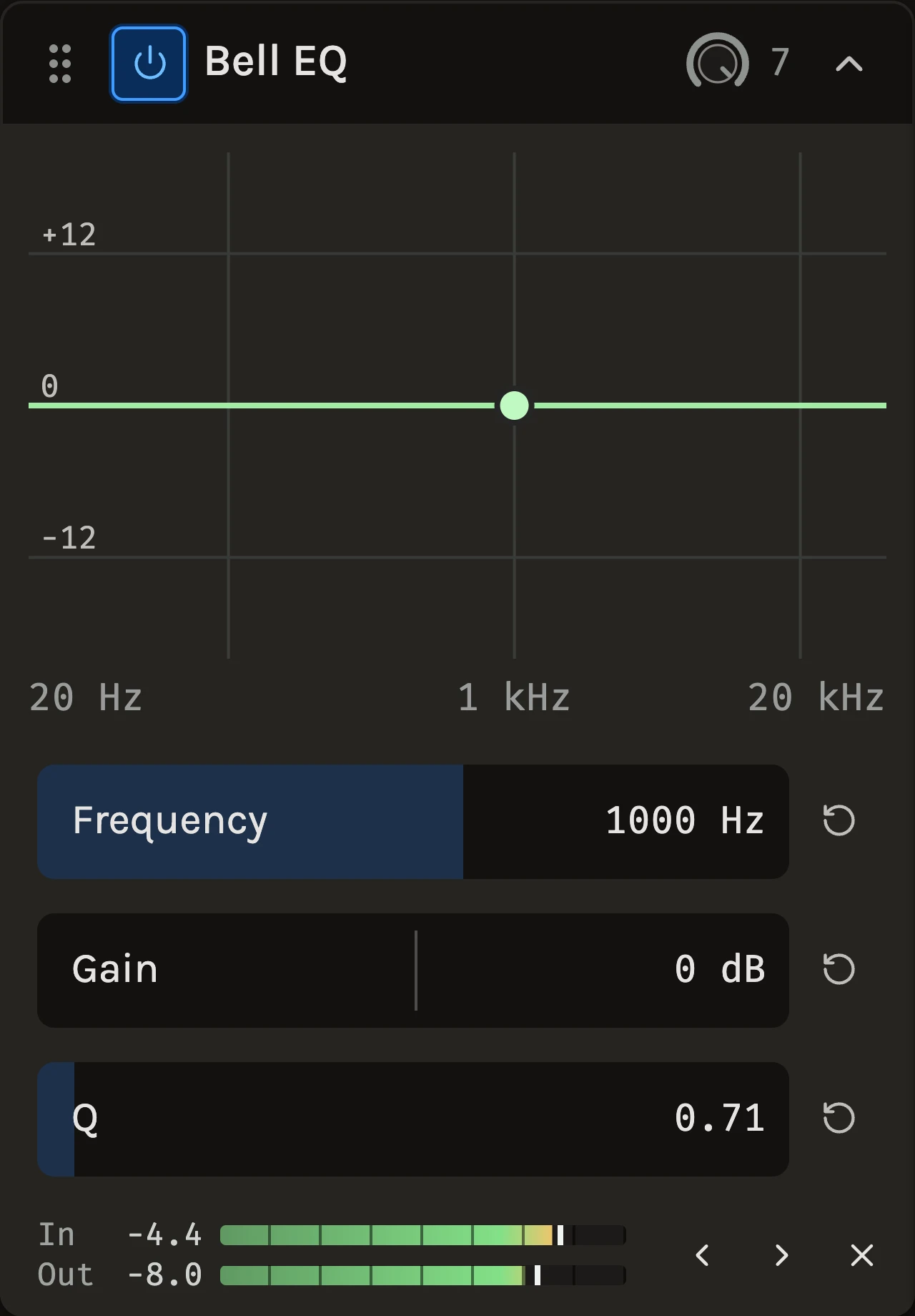
The Bell EQ boosts or cuts one region of the sound. Drag the point on the curve left or right to choose where, up or down to decide how much, and scroll to make the band narrower or wider. It is the quickest way to make one tonal decision and hear it.
When to use it
Use it when a track needs a single move: a little less of the 300 Hz mud on a guitar, a touch more body at 120 Hz on a kick, or a narrow cut at a ringing frequency in a snare. When you find yourself adding a third band, switch to the Parametric EQ, which draws them all on one curve. For removing everything below or above a frequency, the Filter is the right tool; for broad tone shaping without numbers, the Character EQ.
Controls
Frequency
Where the band sits. Drag the point left and right across the graph, or type a value. It starts at 1 kHz.
Gain
How much the band boosts or cuts. Drag the point up and down. Small moves go a long way: 2 to 3 dB is already a clear change on most sources, and the range reaches 18 dB either way for drastic shaping.
Q
How narrow the band is. Scroll over the curve to change it. The default 0.707 is a broad, musical bell; values above 4 are narrow enough to target one note or one resonance, and the lowest values shade a whole region.
Tips
- To find a problem frequency, boost first with a narrow Q, sweep until the ugly part jumps out, then turn the Gain down below zero at that spot.
- Broad and gentle for tone, narrow and deep for problems. A wide cut sounds like a different instrument; a narrow one sounds like the same instrument without the flaw.
- Several Bell EQs in a chain work, but one Parametric EQ shows how the bands add up.
All control ranges 3 controls
| Control | Range |
|---|---|
| Frequency | 20 to 20000 Hz |
| Gain | -18 to 18 dB |
| Q | 0.1 to 12 |
Keep shaping your sound.
There’s a whole rack to explore.